How to Add Shipment Tracking Manually for Offline Orders and Replacements
To add tracking for an offline order or replacement, first create or locate the correct order or shipment record, then enter the carrier and tracking number against the parcel that was actually shipped. Save the change, check that the number opens the expected carrier tracking page, and confirm whether the customer will receive an update. The exact buttons vary by store platform, but the distinction matters everywhere: adding a tracking number to an internal note is not the same as attaching it to a shipment.
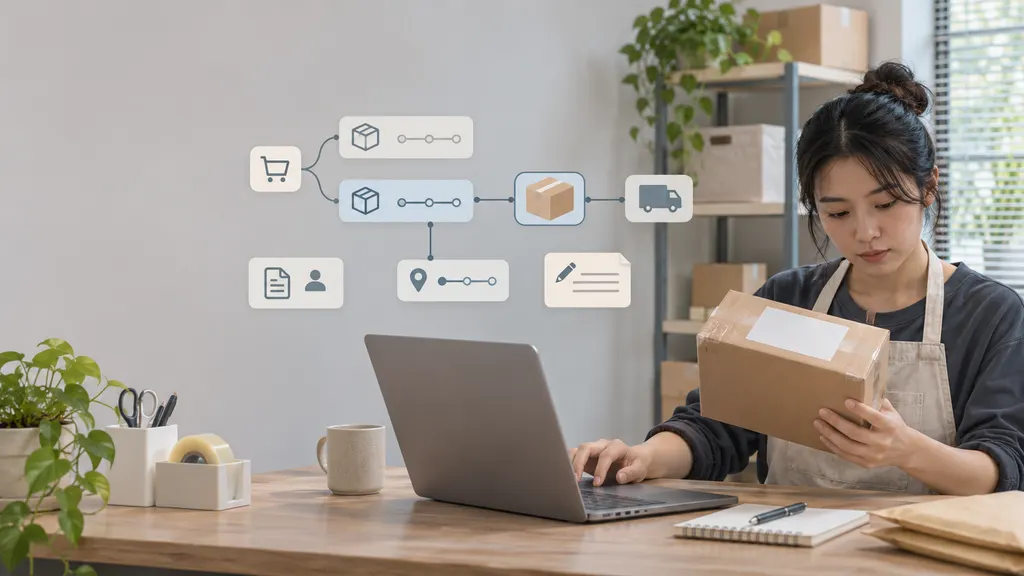
For a replacement, keep the original purchase and the new outbound parcel clearly linked. For an offline sale, record enough order and customer information to make the shipment identifiable later. In either case, verify what your system does after you save: it may update an order, trigger a notification, send data to a tracking tool, or do none of those things automatically.
Decide which record the tracking belongs to
Before entering a number, establish what happened commercially and physically. An offline order is a purchase taken outside the usual online checkout, such as one arranged in person or by phone. A replacement is a new parcel sent in response to an earlier purchase. Those situations may look similar in a shipping queue, but they should not be recorded in a way that suggests the customer placed a second paid order if they did not.
For an offline order, look for an existing manually created order, draft order, or equivalent record in your commerce or order-management system. If none exists, determine whether your process requires one before shipping. A usable record should identify the recipient, the items, the delivery address, and the reason the order was created outside checkout. Follow your business’s rules for payment, tax, and inventory rather than inventing values merely to make the form submit.
For a replacement, start with the original order. Check whether your system allows a separate fulfillment or shipment under that order, or whether your team uses a linked replacement order. Either approach can preserve the history if it clearly distinguishes the replacement parcel from the original shipment. Do not overwrite the original tracking number simply because the customer is waiting for a new package: you may need both numbers to investigate a delivery claim, a return, or a carrier exception.
Prepare the shipment details before making changes
The minimum useful tracking record is more than a string of characters. Gather the following information from the shipping label, carrier handoff record, or fulfillment team:
- The correct order or replacement reference. Identify the customer-facing order and, where relevant, the original order that prompted the replacement.
- The carrier and service, if your system requests them. Select the carrier shown on the label rather than assuming it from the number format.
- The complete tracking number. Copy it directly from the issued label or carrier record, checking for missing characters, spaces, and confusion between similar-looking letters and digits.
- The parcel’s contents. If the order was split, note which items are in this shipment. Tracking for one box should not imply that every item has shipped.
- The recipient and destination. Check the name and address against the final shipping instructions, particularly when a replacement goes somewhere different from the original order.
- The handoff status. Distinguish a label that has been created from a parcel that has actually been given to the carrier.
If several parcels are going out, collect a separate tracking number for each one. A carrier may assign additional identifiers during transit, but the number you enter initially should be the one associated with the label or shipment record your team issued. Keep the underlying label or shipping confirmation available in case the number later needs to be corrected.
Add tracking in the order or fulfillment system
Open the relevant order and find its fulfillment, shipment, or delivery section. If you are creating an offline order, complete the required order record first; a standalone customer profile is usually not enough to establish what was shipped. For a replacement, check the order history before creating a new fulfillment so that you do not duplicate a shipment already recorded by a warehouse or shipping integration.
- Choose the shipment to update. Where the system separates items into fulfillments, select the one containing the items in this parcel. If the parcel has not been recorded yet, create a shipment or fulfillment only when your operational process calls for it.
- Enter the carrier and tracking number. Use a carrier selector when available. If your system offers a custom tracking URL, use a verified link associated with this parcel rather than a generic carrier homepage.
- Review notification options. Some systems let you send a shipping confirmation when tracking is added; others use a separate notification workflow. Check the recipient, message, and timing before sending, especially for a no-charge replacement.
- Save, then reopen the record. Confirm that the carrier, number, item association, and any tracking link were retained. A successful save message alone does not show that the right parcel was updated.
- Check downstream records. If a separate help desk, warehouse system, or tracking application is used, verify that its shipment record matches. Do not assume that a manual edit in one system automatically reaches every other system.
Interface labels and permissions vary. If you cannot edit a fulfillment, check whether it was created by an integration or whether your role has the required access. Avoid making a duplicate order solely to work around an edit restriction; ask the owner of the fulfillment workflow which record should be changed.
Handle replacements without losing the original history
A replacement shipment needs a clear explanation as well as a tracking number. Record what is being replaced, why another parcel is being sent, and how the new shipment relates to the original order. Keep customer-visible wording straightforward: the new number tracks the replacement package, not the first package and not a refund.
Where an original parcel was lost or damaged, preserve its tracking details and the relevant support notes. If the first parcel subsequently arrives, your team needs enough information to recognize that two packages exist and apply its normal resolution policy. Likewise, if only one item from a multi-item order is being replaced, associate the new shipment with that item rather than marking the whole order as shipped again.
Take extra care with automatically generated emails. A replacement may be recorded through a new order for operational reasons, but a standard order confirmation can make it look as though the customer was charged again. Review the message and the order’s payment status before triggering a customer notification. If your system cannot produce an accurate replacement message, send a separate, clear update through your approved support channel.
Verify tracking before sharing it
After saving the number, open the resulting tracking link. Confirm that it corresponds to the intended carrier and parcel. If no scan is visible yet, check whether the label was only just created or the parcel has not been handed over. Do not describe the package as moving through the carrier network based solely on label creation.
A tracking page can help you check the number independently of the order record. For example, 17TRACK’s tracking page provides a place to look up a parcel number. That lookup does not, by itself, add the number to your store’s order, link a replacement to an earlier purchase, or confirm that a shipping notification was sent. Those steps must be checked in the systems that hold your order and customer communications.
If you use a Shopify tracking app, verify its specific workflow before assuming that manually created or replacement orders will appear automatically. The 17TRACK Shopify app listing is a starting point for reviewing the app’s stated capabilities; your own configuration and a test order should determine how a particular manual shipment behaves in your store.
What to do when the number does not appear or work
Start by locating the failure rather than entering the same shipment again. If the number is visible in the order but not in a tracking tool, check whether the tool imports that type of order or fulfillment and whether the shipment has synced. If it appears in a tracking tool but not in the order, identify where it was added and update the order record through the approved workflow. If the link opens the wrong carrier or an unrelated parcel, recheck the label and carrier selection before messaging the customer.
A number that returns no movement immediately after label creation is a different problem from a number that was typed incorrectly. Compare the number with the original label, confirm the parcel’s handoff, and allow for the carrier’s first physical scan before treating the absence of events as a delivery exception. If the carrier has confirmed receipt but the record still looks wrong, use the carrier’s own tracking information and your shipping documents to investigate.
For recurring manual shipments, document who creates the order, who enters tracking, who confirms the handoff, and who sends the customer update. A short handoff checklist prevents two common errors: a parcel leaving without a usable customer-facing number, and a customer receiving a tracking email for a label that has not yet become an active shipment.
FAQ
Can I add tracking if the order was never placed through my online store?
Usually the first step is to create or identify an order record through your platform’s supported manual-order process. Attach tracking to its shipment or fulfillment, not just to a customer note. If you do not use an order system for offline sales, maintain a shipment record with the recipient, items, carrier, tracking number, and a reference your support team can find later.
Should a replacement use the original tracking number?
No. A newly shipped replacement parcel needs its own tracking number. Retain the first parcel’s number as part of the original shipment history and make the relationship between the two shipments clear.
Will adding a tracking number automatically email the customer?
Not necessarily. Notification behavior depends on the platform, the action you take, and your settings. Check whether an email is selected or triggered, verify its wording, and confirm delivery through your normal communication tools rather than assuming that saving the number sent a message.
Why is there no tracking update after I enter the number?
First confirm that the number and carrier match the issued label. A label may exist before the carrier has scanned the parcel. If the parcel has been handed over, compare the carrier’s tracking page with your order and tracking-tool records to determine whether the issue is a scan delay, a wrong number, or a synchronization problem.
What if the replacement has multiple packages?
Record each parcel and its own tracking number separately. Note which replacement items are in each package, and avoid sending a single tracking link as though it covers the entire replacement unless it actually does.
Sources
- 17TRACK — Package Tracking. Referenced for the independent parcel-lookup option, distinct from updating an order record.
- Shopify App Store — 17TRACK Order Tracking. Provided as the official app listing to check when assessing a store’s tracking-app workflow; the article makes no claim that the app supports a particular manual-order action.