Post-Purchase Automation for Shopify: Workflow to Set Up with Shopify Flow and Your Helpdesk
Shopify Flow can automate the Shopify-side steps of post-purchase support, while your helpdesk remains the system for customer conversations, ticket ownership, and agent follow-up. The most reliable setup is to use Flow to detect an order event, check a small number of conditions, and then either update the order or send structured information to a helpdesk integration. Do not treat Flow alone as a complete shipment-monitoring system: carrier delays, delivery exceptions, and return events may require a tracking or returns platform that can provide those signals.

This guide shows how to design the workflow, choose the right trigger, connect the result to your helpdesk, and test the automation without creating duplicate tickets or misleading customer messages.
What the workflow should do
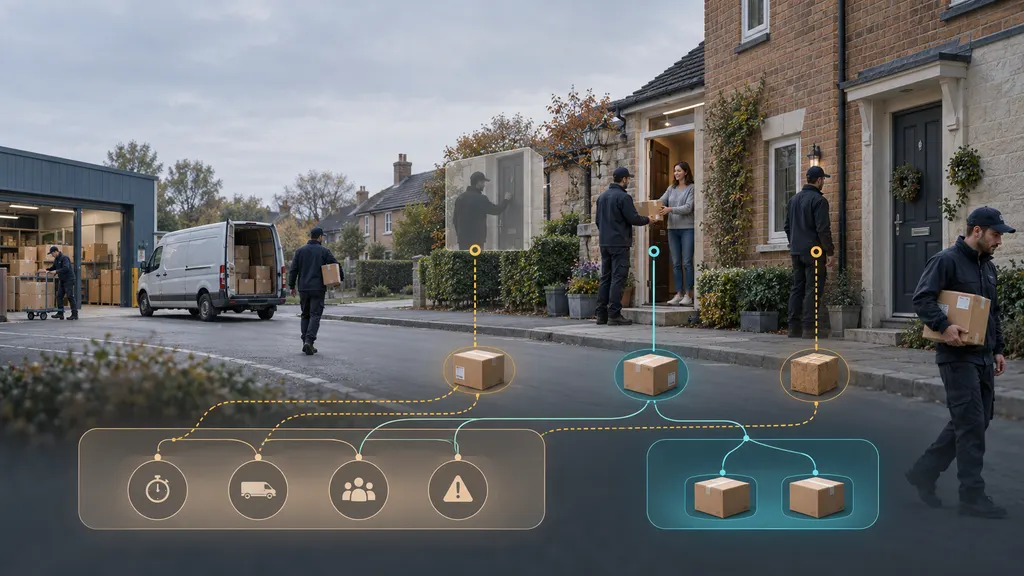
A useful post-purchase workflow has four parts:
- Event: Something happens to an order, such as payment, fulfillment, cancellation, or a refund.
- Decision: Flow checks whether the event needs action. Conditions might include order value, shipping country, fulfillment status, tags, or whether a customer has already contacted support.
- Action: Flow adds a tag, updates an order, sends an email or notification, or sends data to an external endpoint.
- Owner: A person or helpdesk queue receives the case when judgment or customer communication is required.
The objective is not to automate every customer interaction. It is to remove repetitive sorting work while preserving a clear handoff for exceptions.
Before you build: define the source of truth
Start by deciding which system knows each fact. Shopify is usually the source for order, payment, fulfillment, refund, and customer information. A carrier or tracking platform may be the source for in-transit scans, delivery exceptions, and delivery confirmation. The helpdesk should be the source for conversation history, ticket status, assignment, and agent notes.
This distinction prevents a common design error: building a workflow that assumes Shopify Flow can identify every delivery problem. Flow can react to Shopify events and to information made available through connected apps or external services, but it cannot infer a carrier delay merely because an order has been fulfilled. A fulfillment event confirms that a fulfillment record or status changed; it does not, by itself, prove that the parcel is moving normally.
Write down the event you actually need before selecting a trigger. For example:
- “The order was fulfilled, and the customer should receive the standard post-purchase message.”
- “A shipment has a carrier exception, and support should receive a prioritized case.”
- “A refund was created, and the customer should be routed to the refunds queue if a conversation already exists.”
Recommended architecture with Shopify Flow and a helpdesk
There are two practical connection patterns.
Pattern 1: Use a native helpdesk integration
If your helpdesk has a Shopify integration, install and configure it first. Native integrations commonly make order details available inside a ticket or let agents open the relevant order without copying data manually. The exact events and actions depend on the helpdesk, so confirm them in its current documentation rather than assuming that every Shopify event is supported.
In this pattern, Flow can handle the Shopify-side classification. For example, it can add a tag such as post_purchase_priority when an order meets your support criteria. The helpdesk can then use that tag, order data, or an app-provided event to route the conversation.
Pattern 2: Send an HTTP request from Flow
When no native action covers the handoff, Shopify Flow can send an HTTP request to a middleware service, automation platform, or helpdesk endpoint where that option is supported. The receiving system should validate the request, transform the payload if necessary, and create or update a ticket.
Use this pattern only when you can control authentication, duplicate detection, error handling, and the data sent to the external service. A request that simply creates a new ticket every time Flow runs can quickly produce duplicate cases.
Workflow 1: Fulfillment handoff to customer support
This is a good starting workflow because fulfillment is a clear Shopify event and the operational outcome is easy to measure.
Step 1: Choose the trigger
In Shopify Flow, create a workflow using the fulfillment-related trigger that matches your process. The exact trigger name and available variables can change as Shopify updates Flow, so select the current option shown in your admin and inspect the variables available in the workflow editor.
Step 2: Add business conditions
Do not send every fulfilled order to an agent. Add conditions that identify an exception or a useful operational segment. Examples include:
- The order has a high internal support priority.
- The shipping destination belongs to a market with a separate service queue.
- The order contains a product that requires special post-purchase instructions.
- The order has a tag indicating a prior customer complaint or manual review.
- The fulfillment is partial and the customer may need an explanation.
Keep the first version narrow. A rule such as “all international orders go to support” may create more work than it removes unless there is a specific operational reason.
Step 3: Choose the action
For low-risk classification, add an order tag or an internal note. For a case that needs ownership, send a helpdesk notification or create a ticket through the integration. Include only the information the receiving team needs:
- Shopify order ID and order number
- Customer name and contact identifier
- Shipping country or region
- Fulfillment status and tracking reference, when available
- Reason for routing
- Suggested queue and priority
If the helpdesk API requires a specific JSON format, use its documentation as the contract. Do not guess field names. In Flow, insert variables through the variable picker where possible, then compare the test payload with the receiving system's required fields.
Step 4: Prevent duplicate tickets
Use an idempotency strategy. Before creating a new case, check whether the order already has a support tag, an open ticket reference, or a custom field that indicates the handoff was completed. If your helpdesk supports an idempotency key, use a stable value based on the order and event rather than a timestamp. If it does not, have the middleware search for an existing open case before creating another one.
Workflow 2: Delivery-exception escalation
Delivery exceptions require more care because the event may originate outside Shopify. Shopify Flow should be the action layer only if the tracking app or integration passes a reliable event into Shopify or into the endpoint used by Flow.
A sound design looks like this:
- A carrier or tracking service reports an exception.
- The tracking service or middleware checks whether the shipment is still open and whether a similar exception has already been processed.
- The system sends a structured event to the helpdesk or to a Flow-compatible endpoint.
- The helpdesk creates or updates a ticket, assigns the appropriate queue, and displays the tracking context to the agent.
- An agent decides whether to contact the customer, wait for another scan, request address confirmation, or offer an approved resolution.
Use a controlled list of exception categories, such as address issue, customs delay, failed delivery attempt, damaged shipment, or no recent scan. Avoid automatically promising a delivery date unless the underlying service provides a current estimate and your customer-service policy permits that message.
If you use Flow to tag the related order, choose tags that describe the state rather than the outcome. carrier_exception_open is safer than delivery_failed when the carrier has not confirmed a final failure.
Workflow 3: Returns, refunds, and post-purchase questions
Returns and refunds often create repetitive questions, but they should not be collapsed into a single automation. A refund may be complete while the customer is still waiting for the payment provider to post the funds. A return may be requested but not yet received. Each state should have a different helpdesk response or internal instruction.
Use Shopify Flow to classify events such as a return request, refund creation, cancellation, or order update when those events are available in your store's Flow configuration. Route the result according to your policy:
- Informational: Add an internal label and let the helpdesk's existing macro answer common questions.
- Time-sensitive: Create or prioritize a ticket when a promised service window is at risk.
- Manual review: Route damaged goods, disputed refunds, or unusual order histories to a specialist.
- Customer action required: Ask for only the missing information, such as photographs or a corrected address.
If returns are managed by a dedicated returns application, keep return status in that system and pass the necessary status to Shopify or the helpdesk. Do not maintain competing manual statuses in three systems unless there is a clear reconciliation process.
How to configure the helpdesk handoff
Before activating an external action, prepare the helpdesk side.
Define queues and ownership
Create queues that correspond to actual decisions, not just broad labels. “Delivery exception,” “address correction,” and “refund review” usually lead to different procedures. Assign a fallback queue for incomplete or unrecognized events so that automation failures do not disappear.
Create a compact event schema
Use consistent field names and values. A practical event can include event_type, event_id, shopify_order_id, order_number, customer_reference, tracking_number, reason_code, priority, and occurred_at. Send a stable event ID and record it on the receiving side.
Minimize personal data. The helpdesk may already be able to retrieve the customer's profile from the order number, so do not send more customer information than the integration requires.
Set the customer-contact rule
Decide which events create an internal ticket, which send a customer-facing message, and which do both. A carrier exception often warrants internal review before an automated email. A standard fulfillment confirmation may be suitable for an approved template. The rule should be written into the workflow documentation so agents know why a message was sent.
Testing and monitoring checklist
Test in stages rather than switching on every action at once.
- Test the trigger: Confirm that the selected event runs for the order types you expect and does not run for unrelated changes.
- Test conditions: Use positive and negative examples, including partial fulfillment, international destinations, refunds, and orders with existing tags.
- Inspect the payload: Verify order identifiers, tracking data, dates, priority, and the reason code. Check that empty fields do not break the receiving API.
- Test duplicate behavior: Run the same event more than once and confirm that it does not create multiple active tickets.
- Test failure handling: Temporarily use an invalid endpoint or required field in a controlled environment. Confirm that the failure is visible to an owner.
- Run a limited launch: Start with one queue, market, or event type. Review the tickets and agent feedback before expanding.
Monitor both operational and customer outcomes. Useful measures include the number of automated handoffs, duplicate tickets, unassigned tickets, failed requests, time to first human review, and the percentage of routed cases that agents reclassify. Automation that creates more tickets but does not improve ownership or resolution is not working well, even if the Flow run history shows success.
Common mistakes to avoid
- Using fulfillment as proof of delivery: Fulfillment and delivery are different states.
- Creating a ticket for every order: Use conditions and routing thresholds to reserve agents for exceptions.
- Sending unstable identifiers: Order numbers, event IDs, and tracking references should be mapped consistently.
- Skipping authentication: Treat an HTTP endpoint receiving customer or order data as a protected service.
- Ignoring app and plan limits: Confirm which Flow actions, triggers, API calls, and helpdesk features are available in your current setup.
- Automating policy decisions: Let Flow classify routine cases, but keep refunds, compensation, address changes, and suspected fraud within approved rules and human review.
A practical rollout sequence
For most Shopify stores, the safest sequence is to begin with an internal tag or notification, then add helpdesk routing, and only later introduce customer-facing automation. Start with one event that is easy to verify, such as a fulfillment exception or a known refund state. Document the trigger, conditions, action, owner, duplicate rule, and failure path. After the workflow has produced stable results, add more event types one at a time.
The best design is not the one with the most Flow actions. It is the one that gives support agents the right context at the right time, leaves an auditable record, and avoids making a customer repeat information already available in Shopify or the relevant tracking system.
FAQ
Can Shopify Flow create a helpdesk ticket directly?
That depends on the helpdesk and the integration available in your store. If a native Flow action is not available, an HTTP request can pass event data to a middleware service or a helpdesk endpoint where supported. Confirm the receiving system's authentication, payload, and ticket-creation requirements before enabling the workflow.
Can Flow detect that a package is late?
Not from fulfillment status alone. A late or delayed shipment requires a delivery-time rule and a reliable source of carrier or tracking events. Use a tracking integration or service that provides those signals, then route the event to the helpdesk or to the appropriate Shopify workflow.
Should every post-purchase event create a ticket?
No. Use tags, internal notifications, or existing helpdesk automations for low-risk events. Create a ticket when a person must investigate, contact the customer, approve a remedy, or monitor an exception.
How do I stop duplicate tickets?
Use a stable event ID or an order-and-event key, check for an existing open ticket, and record the handoff result. A tag such as support_handoff_complete can help for simple workflows, but a helpdesk or middleware lookup is safer when events can be retried.
What should be tested before launch?
Test the trigger, conditions, data mapping, permissions, duplicate behavior, failure alerts, and customer-facing wording. Include partial fulfillment, missing tracking data, repeat events, refunds, and orders that already have a support case.