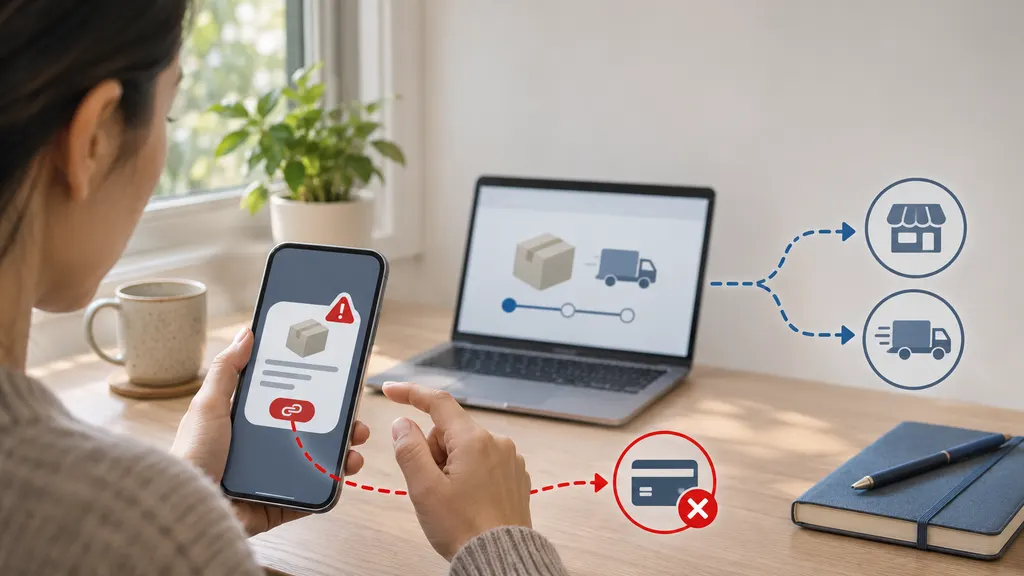
How to Show Shipment Tracking Details Inside Customer Support Tickets
To show shipment tracking details inside customer support tickets, connect each ticket to the correct shipment record, retrieve tracking updates from a carrier or tracking-data provider, and display a concise shipment summary in the agent’s ticket view. Keep the latest event, its timestamp and source, the carrier, and a link to the full tracking history visible. Just as importantly, show when the data was last refreshed so agents do not mistake an old update for a current delivery status.

The person making this change is usually a support operations manager, helpdesk administrator, or developer—not the customer asking where a parcel is. Their goal is to give agents enough reliable context to answer shipping questions without switching between an order system, a carrier website, and the ticket.
Decide what an agent needs to see
A tracking panel should help an agent answer three questions: Which shipment belongs to this customer’s request? What is the latest known carrier event? What should the agent do next? A long, unfiltered event log is less useful than a small set of clearly labeled fields with access to the full history when needed.
- Shipment identity: order number, shipment or fulfillment identifier, carrier, and tracking number. If an order has multiple parcels, show each parcel separately.
- Latest known event: the event description, its occurrence time and time zone, and any location supplied by the tracking source.
- Agent-friendly status: a normalized label such as in transit, out for delivery, delivered, or exception, alongside the carrier’s original wording.
- Data freshness: when your system last checked for updates. This is different from when the carrier event occurred.
- Next step: a link to the detailed tracking record and, where appropriate, a clearly defined internal escalation action.
Do not present an estimated delivery date as a promise. If a date is supplied by the carrier or another shipping system, label its source and avoid treating it as confirmed delivery. Likewise, a “delivered” scan establishes what the tracking source reports; it does not, by itself, resolve a customer’s claim that the parcel was not received.
Choose the connection that fits your systems
There are three common implementation paths. The right one depends less on the appearance of the ticket panel than on where your shipment data already lives.
Use a native helpdesk or commerce integration when it covers the workflow
Start by checking whether your helpdesk and order-management tools already expose shipment details in tickets. Confirm what the integration actually displays: an order link alone, a tracking link, or recent tracking events. Also check how it handles multiple shipments, carrier exceptions, and tickets created before an order is associated with the customer. An existing integration may be sufficient if agents only need to open a tracking page; it may not meet the goal if they must see the latest event without leaving the ticket.
Build a ticket sidebar or internal app when you need control
A custom panel can retrieve shipment data using an order identifier, a verified customer account, or a shipment reference stored on the ticket. Your application then renders the response inside the helpdesk interface. This approach gives you control over field labels, permissions, refresh behavior, and escalation prompts. It also makes your team responsible for matching records correctly, handling errors, and maintaining the integration when either system changes.
Use a tracking-data source for carrier events
If your order system stores tracking numbers but not current carrier events, the panel needs another source of tracking data. This could be a carrier integration or a multi-carrier tracking API. 17TRACK’s Tracking API is one option to evaluate for this role. It is a potential source of shipment updates, not a substitute for the helpdesk interface, order-to-shipment mapping, or agent workflow. Before implementation, use the API documentation to confirm the applicable endpoints, event fields, update mechanism, and integration requirements for your use case.
For stores with several carriers, a shared tracking-data layer can reduce the amount of carrier-specific logic in the ticket panel. That benefit still depends on correctly identifying the carrier and shipment, interpreting the returned events, and testing the carriers your business actually uses.
Map tickets to shipments before displaying status
Record matching is the part most likely to create a convincing but wrong answer. An email address can belong to several orders, and one order can produce several shipments. A tracking number pasted into a customer message may also refer to a shipment outside your store. Design the matching rule before building the display.
- Start with a trusted order reference. If the ticket was created from an authenticated order page or an order-specific contact form, pass that order identifier into the ticket as structured data. Do not rely solely on searching the message body.
- Look up the order’s shipment records. Use your commerce or order-management system to identify fulfillment records, carriers, and tracking numbers. Treat the order system as the source for which shipment belongs to which order.
- Handle more than one possible match. If a customer has several recent orders or an order has several parcels, show a selectable list with enough context for the agent to choose. Do not silently attach the first result.
- Verify access before showing details. A ticket requester’s email address alone may not be adequate proof that they should see every order associated with that address. Follow your organization’s account verification and permission rules.
- Store stable references. Save the order and shipment identifiers used for the match so a later refresh retrieves the same shipment rather than rerunning an ambiguous search.
If no match is found, show “Shipment not linked” with a path for the agent to search or request an order number. If several matches remain, show “Select a shipment.” Neither state should be presented as “Tracking unavailable,” because the underlying problem is identification, not necessarily missing tracking data.
Design the update flow around freshness and failures
Shipment events change after a ticket is created. A one-time copy of the tracking status into ticket text can quickly become misleading. Prefer a live panel or a maintained ticket field that is refreshed from a defined data source. If your chosen integration supports event notifications, you can use them to update your shipment record when new events arrive. Otherwise, schedule checks at an interval that fits your operational needs and the provider’s documented usage rules.
Separate three timestamps in your data model: when the carrier event happened, when your system received or retrieved it, and when the ticket view was last refreshed. These timestamps answer different questions. An agent looking at a ticket on Monday should be able to tell whether “In transit” describes a scan from that morning or an event from several days earlier.
Also plan for incomplete data. A valid tracking number may not yet have a scan; an update request may fail; or a carrier event may arrive later than expected. Show a precise state such as “No carrier events yet,” “Last check failed,” or “Latest event received at [time].” Retain the last known event if it remains useful, but label it as last known rather than current. Provide a retry path and log failures for investigation instead of asking agents to guess what happened.
Normalize statuses carefully. Your internal labels should help agents scan tickets, but the carrier’s original event text should remain accessible. Two different events can both appear under a broad label such as “Exception” while requiring different responses. Do not turn a vague or unfamiliar carrier scan into a specific customer-facing explanation unless the source supports that interpretation.
Make the ticket view useful for the next action
The panel should support a decision, not merely repeat a tracking page. Put the latest event and freshness indicator near the top. Keep the full event timeline available on demand so the main ticket does not become crowded. When an order contains several parcels, make the selected parcel obvious and show whether other parcels have different statuses.
Keep private shipping information within the appropriate agent view. An internal tracking panel and a public customer reply serve different purposes: agents may need order identifiers and operational notes that should not be copied into a response. If your helpdesk uses automated replies or AI-generated drafts, provide a controlled shipment summary and require the draft to distinguish carrier-reported facts from assumptions. For example, “The carrier’s latest scan shows the parcel in transit” is better supported than “Your parcel will arrive tomorrow” when no reliable date is available.
Define what agents should do with common outcomes. An out-for-delivery event may call for a straightforward update; a prolonged absence of new scans may require investigation under your support policy. A delivered scan followed by a non-receipt report calls for a separate verification workflow rather than an automatic ticket closure. These are workflow decisions your team must set; they do not follow automatically from a tracking status.
Test the complete workflow before rollout
A successful API response is not enough to prove that the ticket experience works. Test with tickets and shipment records that reflect the cases agents actually see:
- An order with one shipment and recent carrier events.
- An order with multiple shipments at different stages.
- A tracking number with no events yet.
- A delayed, out-of-order, or unusually worded carrier event.
- A ticket with no order reference, and one with several possible matches.
- A tracking-data request that fails or returns no usable status.
- A delivered scan where the customer reports non-receipt.
For each case, check the agent’s interpretation as well as the data returned. Can the agent identify the correct parcel? Is the latest event visibly dated? Can they distinguish an unavailable update from an unlinked order? Does the view preserve the carrier’s wording when a normalized label is too broad? Can an agent escalate without copying sensitive internal details into a public reply?
Begin with a limited group of agents and review tickets where the panel did not lead to a clear answer. Their feedback may reveal that the problem is not missing tracking events but weak order matching, confusing time zones, or unclear escalation rules. Fix those issues before expanding use. The strongest implementation is the one that helps agents give accurate, appropriately qualified answers—not simply the one that displays the most tracking fields.
FAQ
Can tracking details be added to tickets without a custom integration?
Possibly. Check whether your helpdesk, commerce platform, or existing order integration can display shipment information in the ticket view. Verify the actual fields and refresh behavior before relying on it. If it only provides a link to an order, a custom panel may be needed to show recent carrier events inside the ticket.
Should tracking events be copied into a ticket field or shown in a sidebar?
A sidebar or other refreshable view is usually easier to keep current. A ticket field can help with searching, routing, or automation, but a copied status needs a dependable update process and a visible timestamp. Avoid treating a static note as live tracking information.
What should agents see when a tracking number has no scans?
Show the tracking number, its associated order and carrier if known, and a clear “No carrier events yet” message with the last check time. Do not infer that the parcel is lost or that the number is invalid from the absence of scans alone.
Can an AI support assistant use the same shipment data?
Yes, if your support system can provide it with the correct shipment record and clear field definitions. The assistant should receive event times, data freshness, and source labels, and its response should not turn a carrier-reported status into an unsupported delivery promise. Apply the same access controls used for human agents.
Sources
- 17TRACK Tracking API overview — official product reference for evaluating a tracking-data source.
- 17TRACK API documentation — official documentation to consult when confirming integration methods and available tracking data.