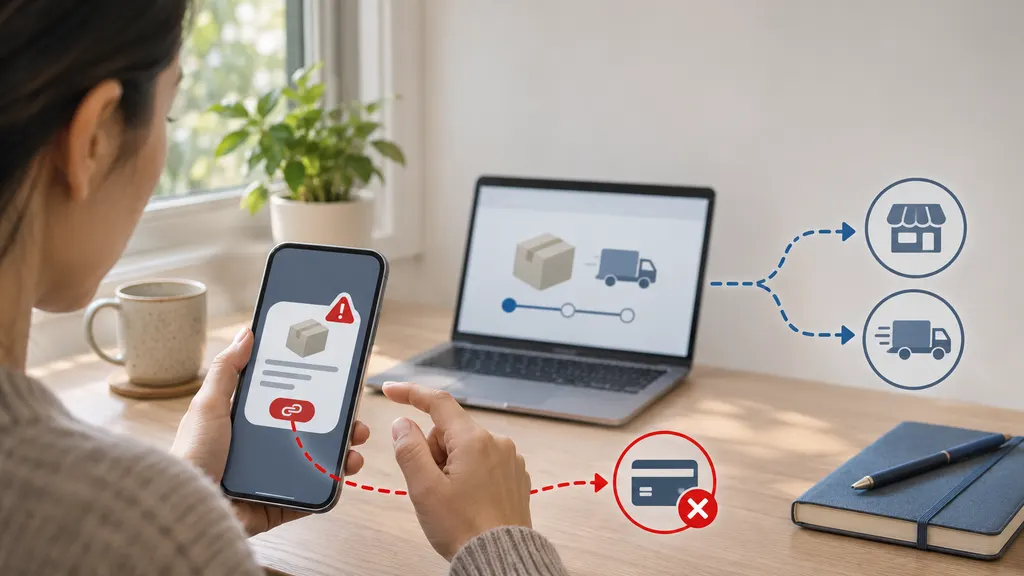
Carrier Account Not Connecting? Check Credentials, Permissions, and Account Details
If a carrier account will not connect to a shipping or logistics platform, first confirm that you are using the right connection method and credentials. Then check the permissions granted to the integration, the carrier account details entered, and any approval step required by the carrier. A successful sign-in to the carrier’s website does not necessarily mean an API or platform connection is authorized.

The person who can resolve the issue depends on what is failing: an account administrator may need to grant access, a developer may need to correct an API request, or the carrier may need to confirm that a service is enabled. Use the checks below to identify the right owner before resetting credentials or repeatedly retrying the connection.
Identify where the connection fails
Start with the exact action and message that failed. “Not connected” can describe several different problems, and each points to a different next step:
- The platform rejects the details immediately. Check the selected carrier, connection method, required fields, and whether a value was pasted into the wrong field.
- A carrier authorization page opens but does not complete. Check which carrier user signed in, whether that user can authorize applications, and whether the requested access was approved.
- The connection appears successful, but a test action fails. The integration may be authorized without access to the particular account, service, or operation being tested.
- A previously working connection stops. Look for an expired or revoked authorization, a changed password or secret, a removed permission, or a change to the linked carrier account.
- Only one account or location fails. Compare its account identifier, service enrollment, and user access with an account that works. Avoid assuming the entire carrier integration is down.
Record the exact error text, the time of the attempt, the carrier and account involved, and the operation being performed. For an API connection, a request identifier and HTTP status, if available, can help support teams trace the failure. Do not include passwords, API secrets, or full access tokens in a support ticket.
Check the connection method before changing credentials
Carrier integrations do not all use the same authorization process. A platform may ask you to sign in through the carrier, enter an account number, supply API credentials, or complete more than one of those steps. Follow the instructions for the specific carrier and the specific platform screen you are using. Credentials issued for one method may not work in another.
Confirm that you selected the intended carrier and, where the platform distinguishes them, the correct country, carrier service, and account type. Check whether the form expects a carrier website login, an API key, a client identifier and secret, or a separate account identifier. These are not interchangeable simply because they belong to the same business.
If you are testing an API integration, verify that the credentials and endpoint belong to the same environment. A test credential may not authenticate against a production endpoint, and an authorization that works in a test environment does not establish that the production account is ready. The carrier’s developer documentation and your platform’s connection instructions should define the applicable requirements.
Verify credentials without exposing them
Re-enter the required values from the carrier’s account or developer portal rather than relying on an old spreadsheet or a forwarded message. Look for leading or trailing spaces, transposed characters, and values copied into similarly named fields. If an account has multiple users or applications, make sure the credential belongs to the account you intend to connect.
Next, check whether the credential is still active. A password change, deleted application, revoked token, or replaced secret can interrupt a connection that previously worked. Some authorization flows also require the platform to obtain or renew an access token. The OAuth 2.0 specification describes access tokens and optional refresh-token flows, but the behavior of a particular carrier connection depends on that carrier and the platform implementing it.
Do not post credentials in a chat, paste tokens into a public troubleshooting forum, or send screenshots that reveal secrets. If a secret has been exposed, follow your organization’s credential-rotation procedure and reconnect the affected application. Rotation is a security response to exposure; it is not the best first step for an unexplained connection error, because it can break other working integrations that use the same secret.
Confirm permissions and authorization
Valid credentials answer “Who is connecting?” They do not always answer “What is this connection allowed to do?” An authorized user may still lack access to a shipping account, a particular application, or the operation the platform is attempting. Ask an administrator to review both the user’s role and the permissions assigned to the application or integration.
Check the operation that fails. Viewing tracking information, creating a label, retrieving rates, and managing account settings may require different access under a carrier’s rules. A connection test can therefore succeed while a later workflow fails. For OAuth-based integrations, granted scopes can limit what an access token permits; the OAuth bearer-token specification distinguishes an invalid token from insufficient scope. A platform may present either condition in its own wording, so treat its message as a clue rather than a definitive diagnosis.
If the integration asks a user to approve access on the carrier’s website, confirm that the right person completed the approval for the right account. A user who can view shipments may not have authority to authorize a third-party application. If approval was declined or assigned to the wrong account, repeat the authorization using the platform’s documented process rather than sharing an administrator’s login.
For developer-managed integrations, also check the application configuration. A mismatch between the registered redirect address and the address used in an authorization flow, for example, can prevent that flow from completing. Change these settings only after comparing them with the carrier’s and platform’s instructions.
Match the carrier account details
Once authentication and permissions look correct, compare the account details in the platform with the carrier’s own records. The exact fields vary, but commonly requested information may include an account number or identifier, billing information, a business address, or contact details. Use the format required by the connection form; do not assume that a number shown on a label or invoice is necessarily the identifier the integration needs.
Pay particular attention to businesses with several carrier accounts. A company may use separate accounts for regions, locations, business entities, or shipping activities. The carrier user who authorizes the connection must have access to the particular account entered. If the platform permits more than one carrier account, check that you are editing the intended connection rather than a similarly named one.
If the carrier requires account verification, application approval, or enrollment for the requested service, confirm its status directly with the carrier or in its account portal. Do not infer that an account is eligible for every integration merely because employees can log in or create shipments on the carrier website. Conversely, an unsuccessful platform connection alone does not prove that the carrier account is inactive.
Use the error and test result to narrow the cause
For an integration that exposes HTTP responses, status codes can provide a starting point. Under the HTTP specification, 401 Unauthorized indicates that the request lacks valid authentication credentials for the target resource, while 403 Forbidden indicates that the server understood the request but refuses to fulfill it. A 400 Bad Request points to a problem with the request itself. Carrier APIs and platforms can add their own error codes and messages, so read the response body and the relevant documentation before deciding what to fix.
- Authentication-related response: Check the credential type, environment, token status, and whether the request sent the credential in the required way.
- Permission-related response: Check the application’s approved access, the user’s role, the account linked to that user, and the operation being attempted.
- Validation-related response: Compare required fields and account identifiers with the connection instructions. Correct one field at a time so you can tell what changed the result.
- Timeout or temporary service error: Preserve the request identifier and time, check for an official service notice if one is available, and retry according to the platform’s guidance. Repeatedly changing account details is unlikely to resolve a temporary network problem.
Make one controlled test after each change. Use the platform’s connection test if it has one, then test the actual task you need to perform. A “connected” indicator confirms only what that particular test checked; it does not establish that every account and workflow will work.
What to send when you need support
If the checks do not resolve the issue, contact the party that controls the failing step. Your platform’s support team can investigate its connection screen and logs. The carrier can confirm account access, service eligibility, or the status of credentials issued through its portal. An internal administrator can approve permissions; a developer can inspect the application’s requests and configuration.
Send a concise report containing the carrier name, the affected account identifier in a suitably masked form, the platform or integration involved, the action that failed, the exact error text, the time and time zone, and any safe request or correlation ID. State whether the connection has never worked or stopped working, and list the checks already completed. This gives the next owner a specific failure to investigate without exposing credentials.
After the connection works, verify the business workflow that prompted the setup. For a shipping integration, that may mean testing the authorized label or rate operation. For a tracking integration, it may mean checking that the intended shipment data can be retrieved. Keep the scope of this final test narrow: connecting an account does not itself guarantee that a particular shipment has received a carrier scan or that every service is available.
FAQ
Why can I sign in to the carrier website but not connect my account?
Website sign-in and integration authorization can be separate. The platform may require an API credential, approval for an application, permission for a specific operation, or access to a particular carrier account. Check the platform’s required connection method before assuming your website password is the correct credential.
Should I reset my carrier password first?
Usually not. First check which credential the integration uses and read the error. Resetting a website password may have no effect on an API credential or an already authorized application. It can also disrupt other connections if they depend on that password.
Why does the platform say “connected” when my test still fails?
The connection check may have verified authentication but not the account, service, or operation in your test. Compare the failed action with the permissions granted and the account selected. Share the specific test result with support if the platform does not expose enough detail.
Can an account number be correct and still be rejected?
Yes. The integration may expect a different account identifier or format, or the authorizing user may not have access to that account. Check the field instructions and confirm the account-user relationship with an administrator or the carrier.
Who should I contact if the connection suddenly stops working?
Start with the platform’s error message and connection status. Contact your administrator for access changes, the platform for failures in its connection flow, or the carrier for questions about carrier-issued credentials and account eligibility. Include the time, error, and a safe request ID when available; never send a password or secret.
Sources
- RFC 6749: The OAuth 2.0 Authorization Framework — authorization, access tokens, refresh tokens, and redirect handling.
- RFC 6750: The OAuth 2.0 Authorization Framework: Bearer Token Usage — invalid-token and insufficient-scope error concepts.
- RFC 9110: HTTP Semantics — meanings of HTTP 400, 401, and 403 responses.